
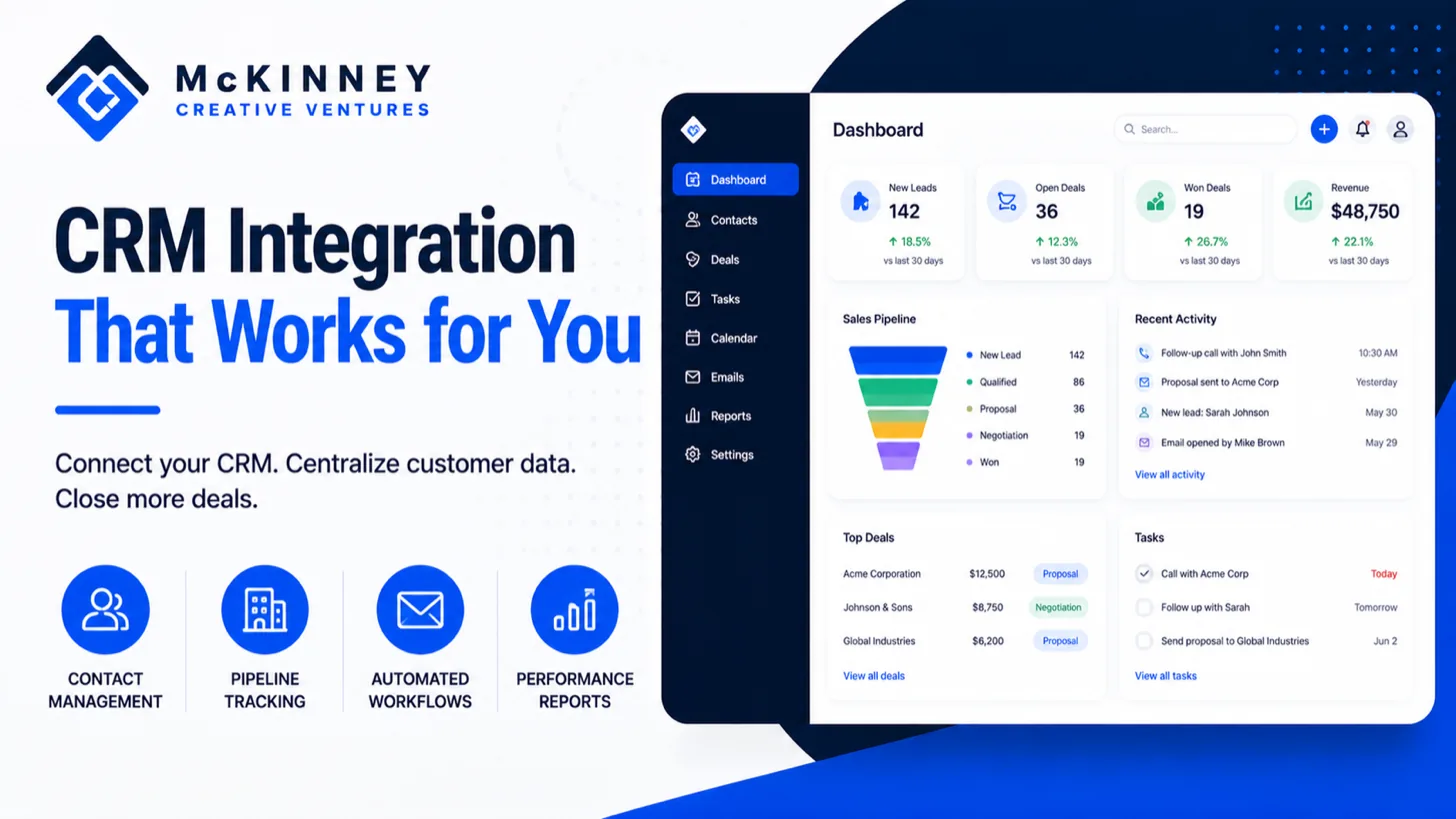
A CRM for service business owners has one job: make sure every lead gets answered, followed up, booked, and asked for a review, without you remembering to do it. This guide is for owners of local service companies in the Twin Cities East Metro, the St. Croix Valley, and western Wisconsin who are choosing a CRM, replacing one, or wondering whether a spreadsheet is still enough.
It covers what to require, not which brand to buy. If you are ready to compare platforms, our guide to GoHighLevel vs HubSpot vs Zoho does that. One disclosure: McKinney Creative Ventures builds CRM systems for service businesses, so we have an interest in this topic. Use the checklist below to judge any system, ours included.
Scroll to see all columns
| Requirement | What it should do | How to test it before you buy |
|---|---|---|
| Lead capture | Put calls, web forms, texts, and profile contacts in one place | Submit a test form and place a test call, then find both in the system |
| Speed to lead | Alert you and reply to a new lead right away | Time the first response to a test lead after hours |
| Missed call text back | Text the caller when nobody answers | Call from a number that is not saved and let it ring |
| Booking | Let a customer pick a time without a phone call | Book a test appointment from a phone |
| Review requests | Send a review link after a completed job | Move a test job to complete and check the message |
| Pipeline | Show every lead's stage, value, and next step | Ask to see a lead move from new to won |
| Reporting | Tie each booked job to the source that produced it | Ask for a report of jobs by source for last month |
What a CRM does for a service business
A customer relationship management system is software that records every contact with a lead or customer and runs the follow-up on rules you set. For a service business, that means a record for each person with their calls, texts, emails, appointments, and jobs in one place, plus automations that act on them.
A spreadsheet can hold the same information, but it cannot reply to a lead at 9 p.m., remind a customer about an appointment, or tell you that a quote has sat for four days. A spreadsheet records what happened. A CRM acts on it. That difference matters most in the first few minutes after a lead arrives, which is why we wrote about speed to lead for service businesses separately.
What you can skip at first
Most service companies do not need advanced sales forecasting, complex scoring, or dozens of custom fields on day one. Start with lead capture, fast follow-up, booking, and review requests. You can add the rest after the basics run reliably for a few weeks.
CRM for service business: what to require
Treat the list as requirements, not features. A feature is something a vendor lists. A requirement is something your business cannot do without. Each of these has a specific test, shown in the table above.
Capture every kind of lead
Leads reach a service company from the phone, the website, text messages, ads, and the Business Profile. If the CRM only catches web forms, you will lose the calls, and for many service trades the phone is how customers first reach you. Require a system that logs calls and texts as well as forms, and that tags each lead with its source.
Speed to lead and missed call text back
Most service businesses miss calls while crews are on jobs. The fix is a rule: if a call goes unanswered, text the caller within moments with a clear message and a way to book. This is one of the highest-value automations a local business can have, and we cover the setup in our guide to missed call text back for service businesses. The CRM needs two-way texting and phone numbers for this to work, so check that those are included or priced clearly. Texting also comes with consent and opt-out rules, so confirm the platform supports opt-outs and ask your own advisor about how you collect permission.
Booking without a phone call
A booking calendar that shows your real availability turns a lead into an appointment while the customer is still looking at your site. Require a calendar that works on a phone, sends confirmations and reminders, and creates the job record in the CRM. If your crew can only handle certain areas on certain days, the calendar should respect that.
Review requests after the job
Reviews feed local visibility. Google says that more reviews and positive ratings can help your local ranking, and that local results are mainly based on relevance, distance, and popularity. A CRM can send the request automatically when a job closes. Google's guidance is to ask customers to visit a link or scan a QR code, and it says offering free or discounted goods or services in exchange for reviews is strictly prohibited. So your automation should ask and never reward. Only send the request to customers whose jobs are complete.
A pipeline you will actually use
A pipeline is a set of stages a lead moves through, such as new, contacted, estimate sent, booked, and won or lost. Keep it short enough that a technician or office manager can update it in seconds. The point is that you can see at a glance which estimates are waiting and which leads have gone quiet, and the system can nudge them without you.
Reporting that ties to jobs
The report you want is booked jobs and revenue by source. If the CRM can only show you counts of leads or messages sent, it will not tell you which marketing is working. Ask any vendor to show how a lead's source is stored and how it connects to a closed job.
How to integrate a CRM with local listings
The short answer is that a CRM and your local listings connect through the links, numbers, and processes you put on the listing, plus whatever connection the CRM vendor supports. For most service businesses the listing that matters most is the Google Business Profile, and the practical steps are below.
- Use the same business name, address or service area, and phone number everywhere. Google says service-area businesses should hide their address and set a service area. Match that in the CRM, your website, and every other listing.
- Point the website link at a page that captures leads into the CRM. Add tracking parameters to the profile's website link so the CRM can record that the visit came from the profile. This is a tracking practice, not a Google feature, so confirm your CRM stores the source.
- Choose the phone number deliberately. Google's performance report counts clicks on the call button on your profile. A count of clicks does not tell you who called or what happened next, so the CRM or your call tracking has to capture that. Using a tracking number as the profile's number is a decision to make carefully, because the number should match your other listings.
- Connect booking. The same Google page says booking data appears only when bookings are managed through a booking provider. Whether a booking link or button is available depends on your category and region, so check your own profile before you plan around it.
- Send the review link from the CRM. Use the Google review link or QR code so the request lands in the right place.
- Check what the vendor's Google connection actually does. Some platforms offer a Google Business Profile connection for reviews or posts. Ask exactly which actions it supports. We did not verify any single vendor's connection for this guide, so treat each claim as a question to confirm.
Your website matters here too. Google's structured data for local businesses lets you tell Google about business hours and departments on the page, and the hours and details should match your profile and CRM.
How to choose and roll out a CRM without breaking your week
Start with a one-page description of how a lead moves through your business today, from first contact to paid invoice. Mark where leads get lost. Then judge each CRM on how well it fixes those gaps, not on the length of its feature list.
- Run the table above as a trial. Test every requirement with a real call, form, and appointment before you commit.
- Check the real cost. Count seats, phone numbers, texting, email, and any setup fee. Vendors price these in different ways, so build the same scenario for each.
- Plan the build. The system is only as good as its setup. Someone has to build the pipeline, write the messages, and test the automations. Decide whether that is you, a staff member, or a partner.
- Roll out in stages. Begin with lead capture and fast follow-up, then add booking and reviews, then reporting. Train your office staff and crew leads on the few things they must do.
- Review monthly. Check which leads came in, how fast you replied, and how many became jobs.
Seasonality changes the load. A heating company in Minnesota gets a rush with the first hard freeze, and a landscaper gets one when the ground thaws. Test your system before your busy season, not during it. If you want a hand setting one up, see our CRM and automation service or contact McKinney Creative Ventures.